
Open Food › Plan. A plan covers one week, Sunday to Saturday, and is written around your targets, meals per day and dietary notes, so set those first. Use the arrows next to the week to plan ahead.
1. Choose how varied the week is
- Same daily: The same menu every day. One simple menu of protein, vegetables and a starch, prepped in a batch. The shortest shopping list and nothing to think about.
- 2 menus: Two menus that alternate. A and B take turns through the week. Still easy to batch-prep, with a bit more variety.
- 3 menus: Three menus in rotation. A, B and C repeat through the week, sharing ingredients so the shopping list stays short.
- Daily: A different menu every day. The most variety. Ingredients are still reused across days, but there is more to buy and cook.
Fewer menus means less shopping and less cooking, and costs fewer credits: 6 credits for the same menu daily, 9 credits for 2 menus, 12 credits for 3 and up to 24 credits for a new menu every day. The cost is shown next to the button.
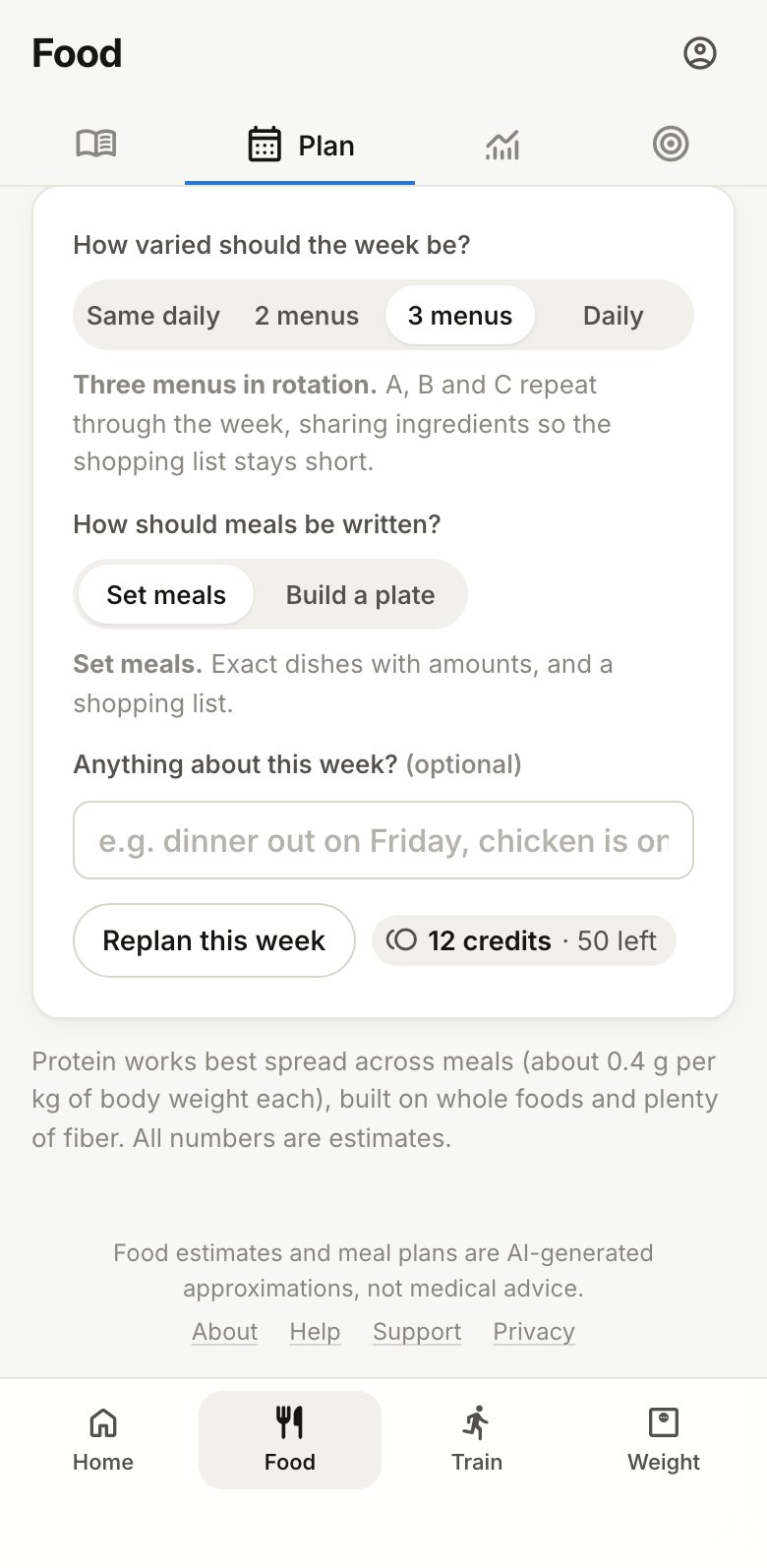
2. Choose how meals are written
- Set meals are exact dishes with amounts, and everything goes on the shopping list.
- Build a plate is for meals you don’t cook, like a cafeteria or a work canteen. Pick which meals to plate, and each one comes as a portion and a few choices for each part of the plate. See Plates.
3. Add anything about this week
The optional note is for this week only, like “dinner out on Friday”, “chicken is on sale” or “no oven”. Things that are always true belong in your dietary notes on the Targets page.
4. Plan the week
Tap Plan this week. It takes about a minute, or a minute or two for a new menu every day. If the week has already started, the button says Plan the rest of this week, and past days are left out.
Reading the plan
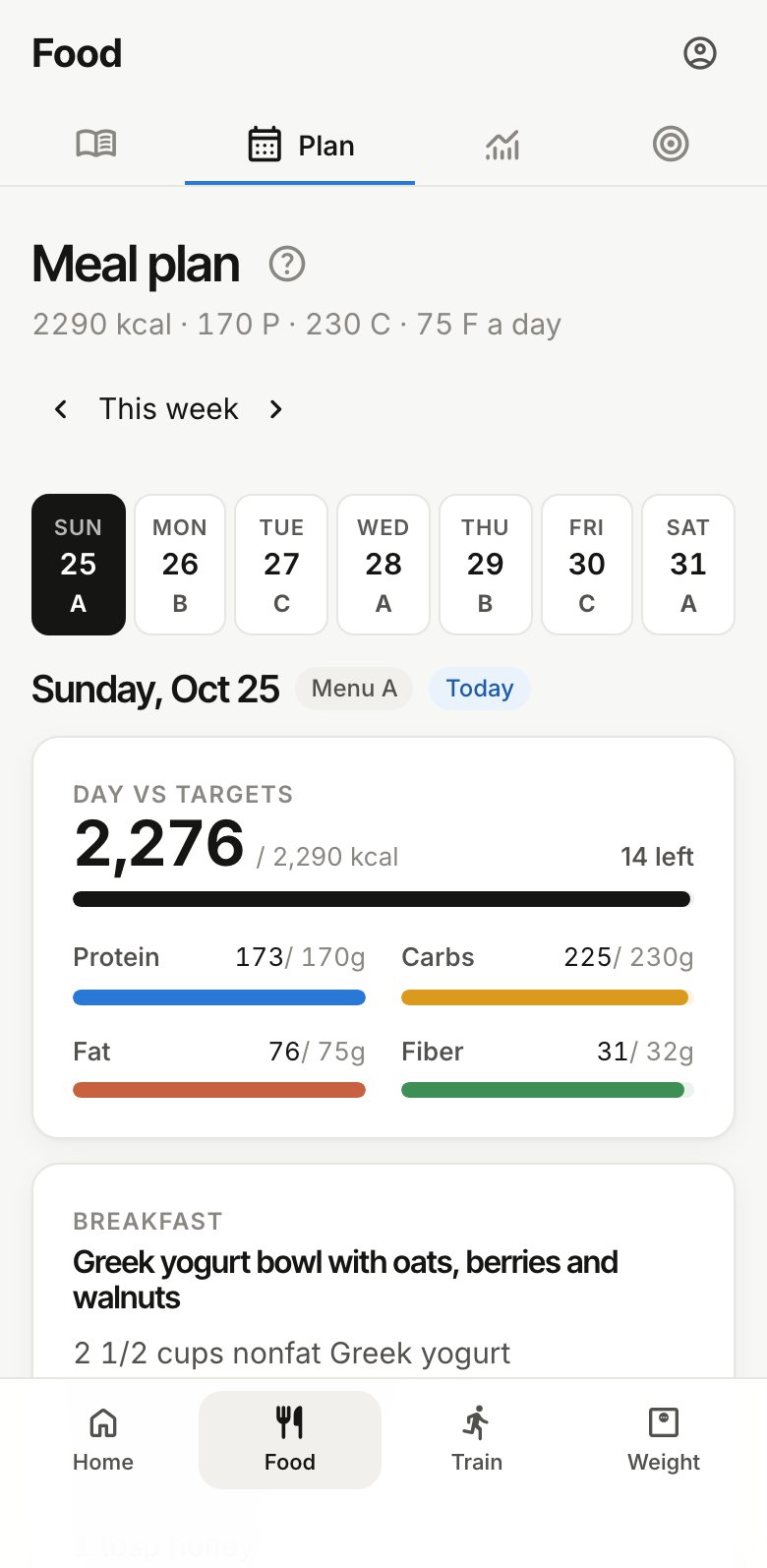
- The day strip shows the week. A letter (A, B, C) tells you which menu a day uses when menus rotate, a dot means meals are planned, and a check means you’ve logged all of that day’s meals.
- Day vs targets shows how the day’s meals add up against your targets.
- Each meal lists what to eat with amounts, its calories, protein, carbs, fat and fiber, and sometimes a prep tip.
Logging a planned meal
Tap Log it on the meal, or in the diary tap the Planned button under that meal. It goes in as one entry, and you can tap the entry afterwards to change the numbers if you ate a bit more or less.
Changing the plan
To change one meal, swap or edit it: that’s quicker and cheaper than replanning. Replan this week writes a new plan in place of the old one. Halfway through a week it replans only the days that are left, and past days stay as they were.