
A set meal says exactly what to cook. That doesn’t work at a cafeteria, a dining hall or a work canteen, where the menu changes and you take what the line has. A plate tells you how to build the meal from whatever is there.
What a plate looks like
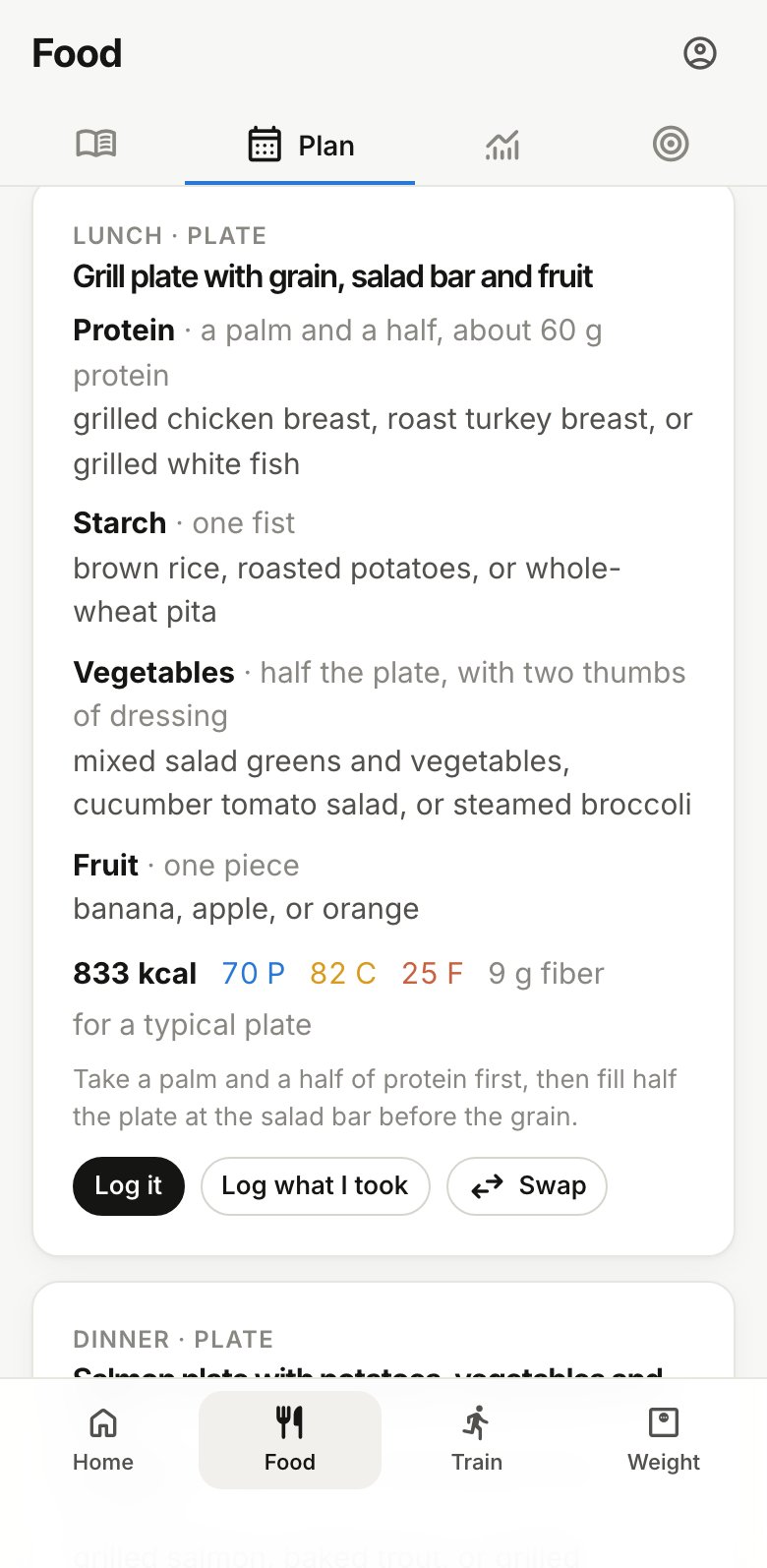
Each plate is split into parts, like protein, vegetables and a starch. Each part has:
- A portion you can judge without a scale, like “palm-sized” or “a fist”.
- A few picks, any one of which works, like “grilled chicken, turkey or tofu”.
The calories and macros on a plate are for a typical plate built from those picks. Plates add nothing to the shopping list.
Planning with plates
- On Food › Plan, under How should meals be written?, choose Build a plate.
- Under Plates for, pick the meals you eat out, like lunch and dinner. The rest stay set meals you cook.
- Plan the week as usual. Your choice is remembered for next time.
If your dietary notes on the Targets page mention a cafeteria or dining hall, lunch and dinner start out as plates.
Turning one meal into a plate
Eating out on a day planned with set meals? Tap Swap on that meal, check Make this a plate (or tap the Cafeteria chip) and choose one of the options. See Swap or change a planned meal.
Logging a plate
- Log it logs the typical plate as planned. It’s quick, and close enough if you followed the portions.
- Log what I took opens the diary’s Describe tab with the plate already written out. Change it to what you actually took (“double chicken, no rice”) and BodyWyse estimates that instead.